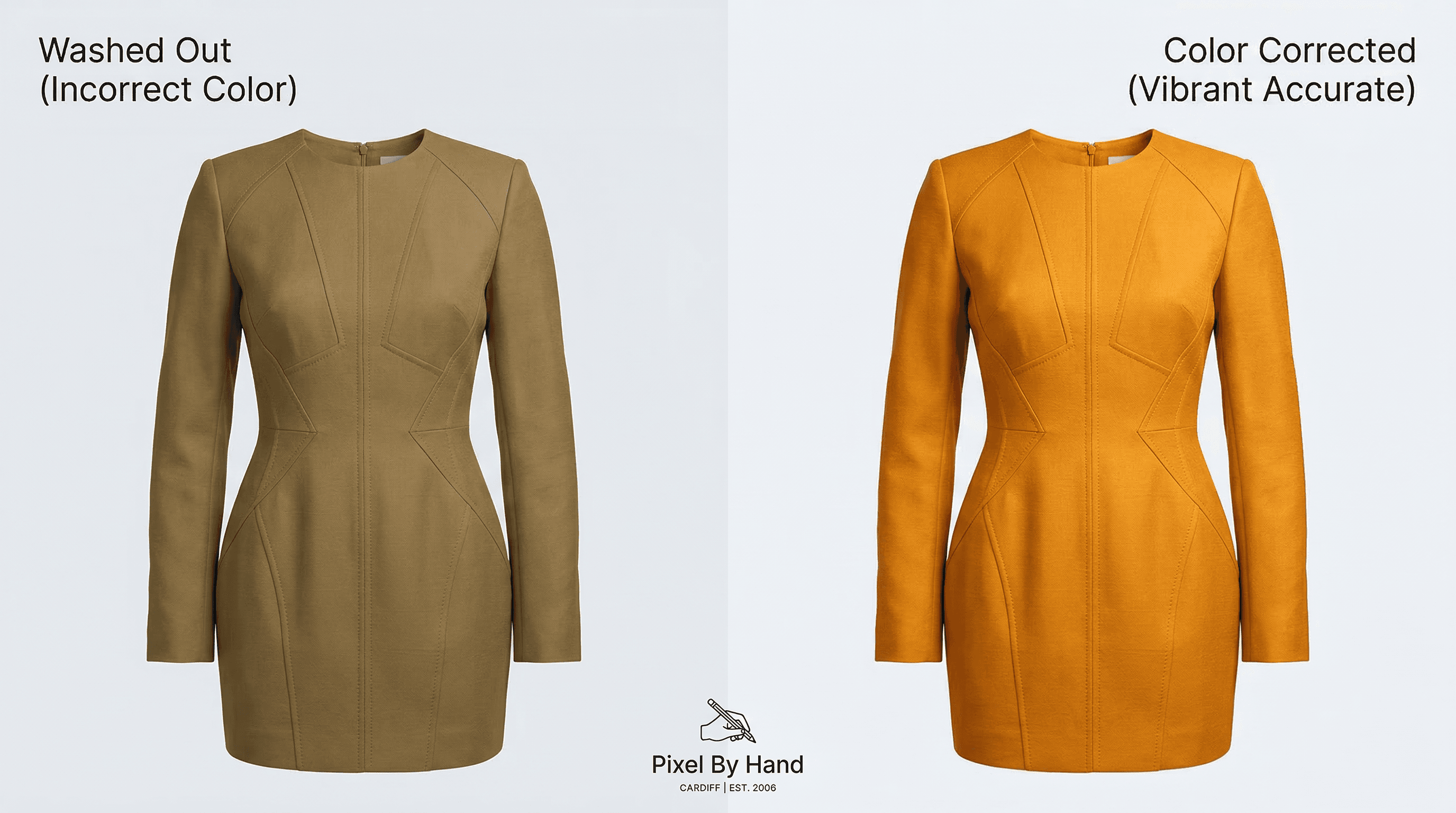
Nearly 11% of online shoppers return products because the colours were not true to life. A further 58% say they would not buy from a brand again after experiencing colour discrepancies. In an industry where your images are your shopfront, inaccurate colour is one of the most expensive mistakes an eCommerce business can make — and one of the easiest to fix.
Colour correction is the process of adjusting your product photographs so the colours on screen match the real item in your customer's hands. Done well, it reduces returns, builds trust, and lifts conversion rates. Done badly — or not at all — it quietly drains your profit margin with every order.
This guide covers everything you need to know: what colour correction actually involves, how it differs from colour grading, common causes of discolouration, step-by-step techniques, colour matching for product variants, and when it makes sense to hand the work to a specialist. With over 10 years of experience and 380+ eCommerce clients worldwide, Pixel by Hand has colour-corrected millions of product images — and we have distilled that expertise into one comprehensive resource.
Table of Contents
- What Is Colour Correction?
- Why Colour Accuracy Matters for eCommerce
- Common Causes of Discolouration in Product Photos
- Colour Correction vs. Colour Grading
- What Is Colour Matching?
- How to Colour-Correct Product Images: Step-by-Step
- Tools and Software for Colour Correction
- Should You Colour Correct Before or After Editing?
- DIY vs. Professional Colour Correction
- How Pixel by Hand Can Help
- FAQ
What Is Colour Correction?
Colour correction is the technical process of adjusting the colours in a photograph so they accurately represent the real-life appearance of the subject. It involves tweaking white balance, exposure, contrast, hue, saturation, and luminosity to eliminate unwanted colour casts and produce a natural, true-to-life result.
Every photograph is influenced by its environment. The camera sensor, the lighting conditions, the background surface, even the time of day — all of these can shift the colours your camera captures away from what your eyes actually see. Colour correction brings those colours back into line.
For product photography specifically, the goal is straightforward: what the customer sees on screen must match what arrives in the post. A navy blazer should look navy, not black. A coral lipstick should look coral, not salmon. A white trainer should look white, not cream.
The process typically works with colour models like RGB (Red, Green, Blue) for digital screens or CMYK (Cyan, Magenta, Yellow, Black) for print. Adjustments are made at a global level (affecting the entire image) and locally (targeting specific areas that need attention).
Why Colour Accuracy Matters for eCommerce
Colour influences roughly 60% of purchasing decisions. In an online setting where customers cannot physically inspect products, your images carry the entire burden of setting expectations. When those expectations are wrong, you pay for it — directly and indirectly.
The Financial Impact of Inaccurate Colour
- Returns: Research from the European Journal of Marketing found that 11% of customers return products specifically because colours were inaccurate. With online return rates already sitting around 30% (nearly four times the 8.8% rate in physical shops), every percentage point you can reduce matters.
- Lost repeat business: 58% of consumers say they would not make future purchases from a brand after encountering colour discrepancies. One inaccurate photo does not just cost you one sale — it costs you a customer.
- Negative reviews: A product that arrives looking different from its photo generates disappointment, and disappointed customers leave reviews that deter future buyers.
The Conversion Impact
Accurate, professional product images create trust. They signal that you care about detail, that your brand is credible, and that the customer can buy with confidence. This translates directly into higher add-to-basket rates, lower bounce rates, and stronger brand loyalty.
Think of colour correction as a form of customer service. You are setting the right expectation before the purchase — which is far cheaper than dealing with the consequences of the wrong one.
Common Causes of Discolouration in Product Photos
Before you can fix colour issues, it helps to understand what causes them. The most frequent culprits are:
1. Incorrect White Balance
White balance is the single most common cause of colour cast in product photography. If your camera's white balance setting does not match your lighting conditions, the entire image will have a yellow, blue, or orange tint. Auto white balance gets it right much of the time, but it is far from perfect — especially under mixed lighting.
2. Poor or Inconsistent Lighting
If your light source is too far away, not diffused properly, or positioned at the wrong angle, it will not illuminate your product evenly. This creates dull patches, colour shifts, and inconsistent results across a batch of photos. Natural light is particularly unreliable — it changes throughout the day and varies with cloud cover.
3. Coloured Backgrounds
A non-neutral background will reflect its own colour onto your product. A warm wooden table adds an orange tint. A blue wall adds a cool cast. For accurate colour, always shoot against a white or neutral grey background.
4. Camera Sensor Limitations
Every camera sensor interprets colour slightly differently. Even high-end cameras will not produce perfectly accurate colour straight out of the box. This is normal and expected — it is precisely why colour correction exists as a post-production step.
5. Monitor Calibration
Your monitor may not display colours accurately. If you are editing on an uncalibrated screen, you could be "correcting" colours in the wrong direction. Professional photo editors use calibrated monitors to ensure what they see is what the customer will see.
Colour Correction vs. Colour Grading
These two terms are often used interchangeably, but they serve very different purposes. Understanding the distinction is essential for getting the right result from your product images.
| Colour Correction | Colour Grading | |
|---|---|---|
| Purpose | Technical accuracy — making colours true to life | Creative expression — establishing a mood or aesthetic |
| When to use | Every product photo (catalogue, listings, marketplace) | Lifestyle shots, social media, brand campaigns, banners |
| What it adjusts | White balance, exposure, contrast, colour casts | Tonal palette, warmth/coolness, stylistic colour shifts |
| Goal | "This looks exactly like the real product" | "This feels luxurious / energetic / minimal" |
| Priority for eCommerce | Essential — non-negotiable | Optional — depends on context |
| Risk if overdone | Minimal (you are correcting to reality) | Can make products look unrealistic or misleading |
When to Use Each
Colour correction should be applied to every product image that appears in your catalogue, on marketplace listings, and anywhere a customer is making a purchasing decision based on the image. The colours must be accurate.
Colour grading is appropriate for lifestyle imagery, social media content, website banners, and brand storytelling. Here, you are not trying to show the product exactly as it is — you are creating an atmosphere. A warm tone for a winter clothing range. A cool, clean palette for a tech brand. A vintage feel for artisan goods.
In practice, colour correction comes first. You fix the technical issues to get a clean, accurate baseline. Colour grading, if needed, is then applied on top. At Pixel by Hand, we always correct first and grade second — never the other way round.
Tips for Both
- Keep colours consistent across your entire product range — consistency builds brand recognition and customer trust.
- Do not over-saturate. Our brains are wired to detect unnatural colour, and oversaturated images look cheap.
- If you are unsure which treatment an image needs, ask your editor. A good service will advise you based on where the image will be used.
What Is Colour Matching?
Colour matching is a specific technique used to ensure the colours in your edited product photos correspond precisely to the real-world product. It goes a step beyond general correction — you are matching to a defined colour standard, usually provided as a specific colour code (Hex, Pantone, or RGB value).
How It Works
- You provide your photo editor with the exact colour code for your product (from the manufacturer, your brand guidelines, or a physical sample).
- The editor adjusts the colours in the image to match that specific code.
- The result is an image where the product colour on screen is as close as technically possible to the real item.
This is particularly important for industries where precise colour matters — fashion, cosmetics, homeware, automotive parts, and any brand that sells the same product in multiple colour variants.
Colour Matching vs. Colour Changing
These are related but different services:
- Colour matching adjusts an existing photo to show the product's true colour accurately.
- Colour changing takes a single product photo and creates additional versions in different colours. For example, if you sell a shoe in four colours, you photograph one and digitally create the other three.
Colour changing can save significant time and money. Instead of staging and photographing every variant individually, you shoot once and let your editor produce the rest. The key requirement is providing accurate colour codes for each variant — the editor uses tools like Photoshop's Selective Colour adjustment to swap colours precisely.
Benefits for Multi-Variant Products
- Reduced photography costs — shoot one variant, generate the rest digitally
- Faster time to market — new colourways can be listed immediately without waiting for a photoshoot
- Consistency — all variants are produced from the same base image, so framing, lighting, and quality are identical
- Accuracy — using exact colour codes eliminates guesswork
Start your free trial — send us one product image and we will show you what colour matching can do for your listings.
How to Colour-Correct Product Images: Step-by-Step
Whether you are working in Adobe Photoshop, Lightroom, or another editing tool, the fundamental steps are the same. Here is the workflow our editors follow at Pixel by Hand.
Step 1: Set the White Balance
Open your image and use the white balance eyedropper tool. Click on an area that should be neutral (white or grey) in the image. This removes any overall colour cast and gives you a clean starting point. In Photoshop, you can do this via Camera Raw Filter or a Curves adjustment layer.
Step 2: Adjust Exposure and Contrast
Use Levels or Curves to correct the overall brightness and contrast. Drag the white point to where the histogram begins to spike on the right, and the black point to where it begins on the left. Adjust the midtone slider until the image looks naturally lit — not too dark, not washed out.
Step 3: Correct the Highlights, Midtones, and Shadows
Fine-tune each tonal range separately. Highlights are the brightest areas — pull them back if they are blown out. Shadows are the darkest areas — lift them if detail is being lost. Midtones sit in between and control the overall feel of the image.
Step 4: Adjust Saturation Carefully
Increase saturation modestly to make colours more vibrant, but exercise restraint. A saturation boost of +10 to +20 is usually sufficient for product images. Going further risks making the image look artificial. Consider desaturating shadows slightly (around -20 to -30) for a cleaner, more professional look.
Step 5: Target Specific Colours
Use Hue/Saturation or Selective Colour adjustment layers to target individual colour channels. If a red product is pulling slightly orange, you can adjust just the red channel without affecting the rest of the image. This is where precision editing makes the biggest difference.
Step 6: Check with Histograms and Waveforms
Use your histogram to verify that no colour channel is clipping (being pushed beyond its displayable range). The RGB histogram shows the distribution of red, green, and blue — all three should be broadly similar for a neutrally lit product image. Waveform displays, available in Photoshop's Lumetri scopes, give you a more detailed view.
Step 7: Compare Against the Original
Always compare your corrected image against the original side by side, and ideally against the physical product. Zoom in to check that textures and details have not been lost, and that colours look natural at both full zoom and thumbnail size.
Tools and Software for Colour Correction
| Tool | Best For | Cost |
|---|---|---|
| Adobe Photoshop | Professional-grade local and global adjustments, batch processing | Subscription (~£20/month) |
| Adobe Lightroom | Batch colour correction across large catalogues, non-destructive editing | Subscription (~£10/month) |
| Capture One | Tethered shooting + colour correction, excellent colour science | Subscription (~£20/month) |
| GIMP | Free alternative for basic colour correction | Free |
| Affinity Photo | One-time purchase, solid Photoshop alternative | ~£50 one-off |
For eCommerce businesses processing high volumes, Lightroom's batch-editing capabilities are often the most efficient choice for in-house work. For precision work on individual hero images, Photoshop remains the industry standard — and it is what our editors use at Pixel by Hand.
Should You Colour Correct Before or After Editing?
This is one of the most common questions we hear from clients. The answer depends on your workflow, but here is our recommended approach.
Our Recommendation: Correct First, Then Edit
At Pixel by Hand, we colour correct before moving to retouching and creative editing. The logic is simple: start with an accurate, clean image, then build from there.
Advantages of correcting first:
- You can see the true colours before making any other editing decisions
- Problem areas (colour casts, exposure issues) are addressed at the foundation level
- Retouching work (dust removal, blemish fixes, shadow creation) is done on a colour-accurate base
When correcting after might make sense:
- If you are making heavy compositing changes (background swaps, major retouching) that will affect the colour anyway
- If you prefer to make global colour adjustments at the end of your workflow
There is no universally wrong answer, but for product photography, correcting first produces more consistent and predictable results.
DIY vs. Professional Colour Correction
When DIY Works
- You have a small catalogue (under 50 images)
- You have access to calibrated monitors and editing software
- You understand white balance, histograms, and colour channels
- You have the time to learn and iterate
When to Outsource
- Your catalogue is growing and you are spending hours on repetitive edits
- Colour accuracy is critical to your product category (fashion, cosmetics, homeware)
- You sell products in multiple colour variants and need colour matching or colour changing
- Inconsistency across your images is affecting brand perception
- You do not have Photoshop licenses or the expertise to use them effectively
The Real Cost of DIY
Many eCommerce businesses start by editing in-house to save money, only to find that the hidden costs add up quickly:
- Software licences — Photoshop alone costs ~£240/year
- Time — colour correcting each image properly takes 5-15 minutes; multiply that by hundreds of SKUs
- Inconsistency — without a trained eye and calibrated equipment, results vary from image to image
- Opportunity cost — every hour spent editing is an hour not spent on marketing, sourcing, or customer service
A specialist service like Pixel by Hand handles colour correction alongside background removal, retouching, and formatting — giving you back time while delivering results that are consistent across your entire catalogue.
Send us your images for a free sample edit — see the difference professional colour correction makes, with no commitment.
How Pixel by Hand Can Help
With over a decade of experience and more than 380 eCommerce clients worldwide, Pixel by Hand provides end-to-end product photo editing — including colour correction, colour matching, and colour changing as standard.
What We Offer
- Colour correction — accurate, true-to-life colours on every product image
- Colour matching — precise colour-code matching for brand consistency
- Colour changing — multiple colour variants from a single product photo
- Background removal — clean white or custom backgrounds
- Clipping paths — precise product isolation
- Retouching — dust, wrinkle, and blemish removal
- Ghost mannequin — 3D hollow-man effects for apparel
- Shadow creation — natural or reflection shadows
How It Works
- Send us your images — upload via our platform or email
- We discuss your requirements — colour codes, style preferences, marketplace specifications
- Our editors get to work — using Adobe Photoshop on calibrated monitors
- You receive your edited images — typically within 24-48 hours
- Request revisions if needed — we work until you are happy
Why Our Clients Stay
- Consistent quality across thousands of images
- Fast turnaround without sacrificing accuracy
- A dedicated editor who learns your brand's requirements
- Flexible pricing that scales with your volume
Start your free trial today — send us a selection of your current images and we will show you how we can improve them. All sample edits are completely free.
FAQ
How much does professional colour correction cost?
Pricing varies by provider and volume. At Pixel by Hand, colour correction is included as part of our per-image editing service rather than charged separately. The more images you send, the lower the per-image cost. Start with a free trial to see the quality before committing.
Can colour correction fix badly lit product photos?
Colour correction can significantly improve images with poor lighting by adjusting white balance, exposure, and contrast. However, it cannot add detail that was never captured. If an image is severely underexposed or overexposed, some information is lost permanently. The best results come from starting with reasonably well-lit source images and refining from there.
What colour codes should I provide for colour matching?
Hex codes (e.g., #2C3E50), Pantone references, or RGB values all work. The more precise the reference, the more accurate the result. If you do not have exact codes, a physical sample or manufacturer specification sheet is the next best option. Your editor can work with any of these to achieve an accurate match.
Is colour correction the same as colour grading?
No. Colour correction is a technical process aimed at making colours accurate and true to life. Colour grading is a creative process that applies a specific mood or aesthetic. For product catalogue images, colour correction is essential. Colour grading is optional and typically reserved for lifestyle and marketing imagery. See the comparison table above for a full breakdown.
How do I know if my product images need colour correction?
Compare your product photos side by side with the physical product under neutral lighting. If the colours on screen do not match what you see in front of you — if whites look yellow, blues look purple, or reds look orange — your images need correction. Other signs include inconsistent colour across a batch of photos shot at different times, or customer feedback mentioning that products look different in person.
Can I colour-correct images taken on a smartphone?
Yes. The same principles and tools apply regardless of the camera used. Smartphone cameras are more prone to colour inaccuracy due to smaller sensors and aggressive auto-processing, so colour correction is arguably even more important for smartphone-shot product images. If you are using a smartphone for product photography, shooting in RAW mode (available on most modern phones) gives you far more flexibility in post-production.
Pixel by Hand is a specialist eCommerce product photo editing service with over 10 years of experience. We work with 380+ brands worldwide, delivering colour-accurate, marketplace-ready images — typically within 24-48 hours. Get started with a free trial.