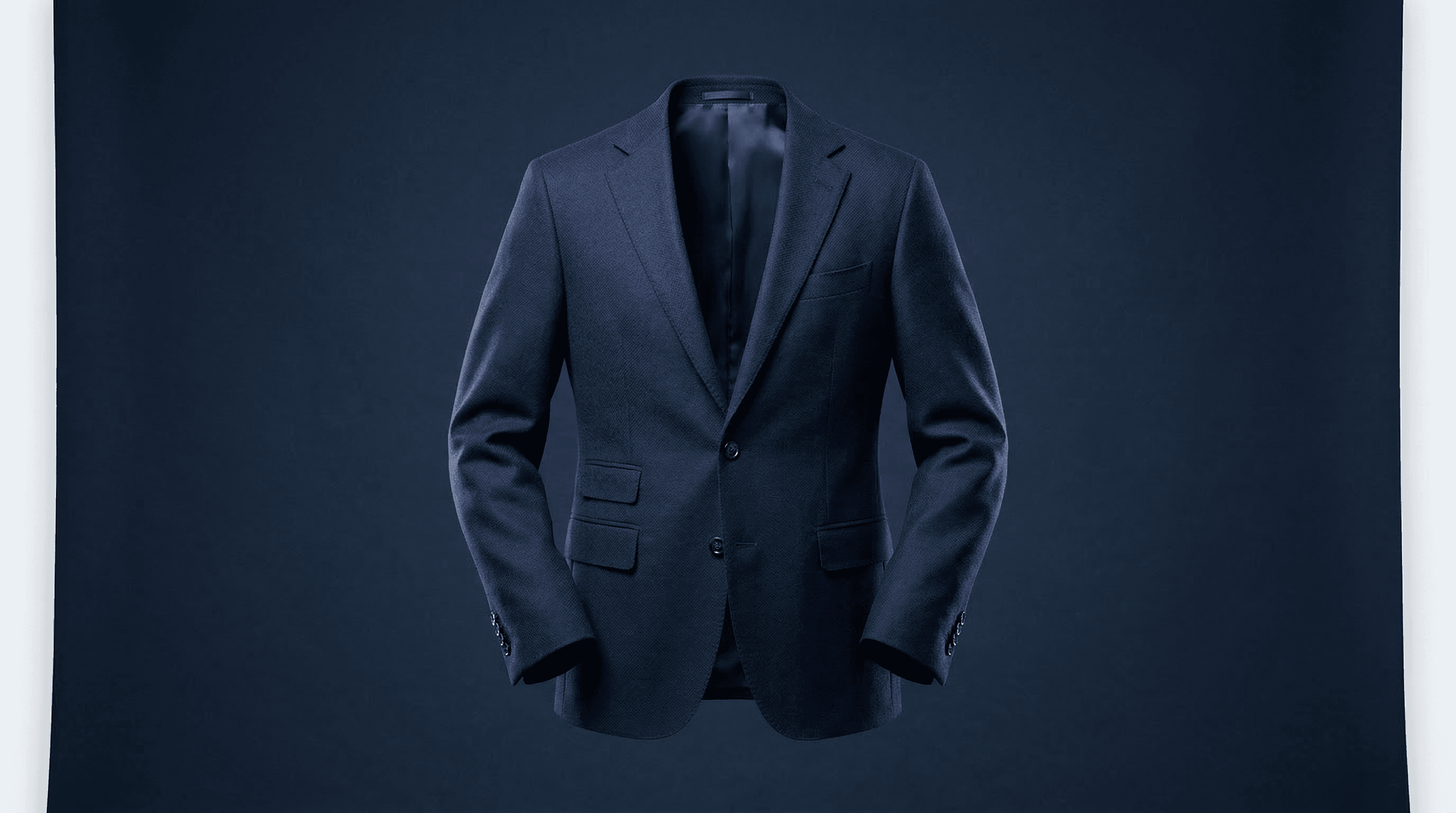
The ghost mannequin effect is one of the most powerful techniques in eCommerce product photography. It makes clothing appear three-dimensional and worn — without a visible mannequin or model in the frame.
At Pixel By Hand, we have spent two decades perfecting this technique for 500+ eCommerce brands worldwide. This guide covers everything you need to know: what the ghost mannequin effect is, how to shoot for it, how to edit it in Photoshop, and when it makes sense to outsource the work entirely.
Table of Contents
- What Is the Ghost Mannequin Effect?
- Why It Matters for eCommerce Sales
- Types of Ghost Mannequin Effects
- Equipment You Need
- How to Shoot for the Ghost Mannequin Effect
- How to Edit the Ghost Mannequin Effect in Photoshop
- Tips for Better Ghost Mannequin Photos
- When to Outsource Ghost Mannequin Editing
- FAQ
What Is the Ghost Mannequin Effect?
The ghost mannequin effect — also called the invisible mannequin or hollow man effect — is a post-production technique that removes the mannequin from product photographs. The result is clothing that appears to float in a natural, three-dimensional shape, as though worn by an invisible person.
This is achieved by photographing a garment on a mannequin (or model), then carefully editing out the mannequin in software like Adobe Photoshop. Interior details such as collar linings, inner labels, and necklines are composited in from separate shots, creating a seamless final image that shows the garment's full shape and construction.
For online retailers, this technique solves a fundamental problem: customers cannot touch or try on clothing before buying. The ghost mannequin effect bridges that gap by giving shoppers a clear, realistic view of how a garment fits and drapes — without the distraction of a mannequin or the cost of hiring live models for every product.
Why It Matters for eCommerce Sales
Product imagery is one of the biggest drivers of purchase decisions in online retail — high-quality, consistent imagery directly increases conversion rates and reduces returns.
Here is why the ghost mannequin effect specifically moves the needle:
-
Shows fit and shape. Flat-lay or hanger shots cannot communicate how a garment drapes across the shoulders, sits on the waist, or flows when worn. The ghost mannequin effect gives customers that three-dimensional understanding.
-
Professional consistency. Every product in your catalogue looks uniform — same style, same background, same presentation. This builds trust and makes your brand look established.
-
Cost-effective at scale. Compared to hiring models for every SKU, mannequin photography with post-production editing is significantly cheaper — especially when you have hundreds or thousands of products.
-
Works for all garment types. T-shirts, suits, dresses, jackets, trousers, underwear — the technique adapts to virtually any clothing category.
-
Reduces returns. When customers can clearly see what they are buying, they make better purchasing decisions. Fewer surprises means fewer returns.
Whether you sell menswear, womenswear, or children's clothing, the ghost mannequin effect is now an industry standard that customers expect to see.
Types of Ghost Mannequin Effects
Not all ghost mannequin edits are the same. The type you need depends on the garment and how much of its interior you want to show.
| Type | Description | Best For |
|---|---|---|
| Neck joint | Removes mannequin, composites inner neckline from a separate shot | T-shirts, shirts, blouses, jumpers |
| Bottom joint | Composites the inner waistband or hem | Trousers, skirts, shorts |
| Sleeve joint | Shows interior of sleeve openings | Jackets, coats, long-sleeve tops |
| Full 3D / hollow man | Complete mannequin removal with all interior areas composited | Suits, dresses, outerwear |
| Half ghost | Mannequin removed from torso only; bottom or sleeves left as-is | Partial product views, catalogue shots |
The neck joint is by far the most common request we handle at Pixel By Hand, but for premium brands and outerwear, the full 3D approach delivers the most impressive results.
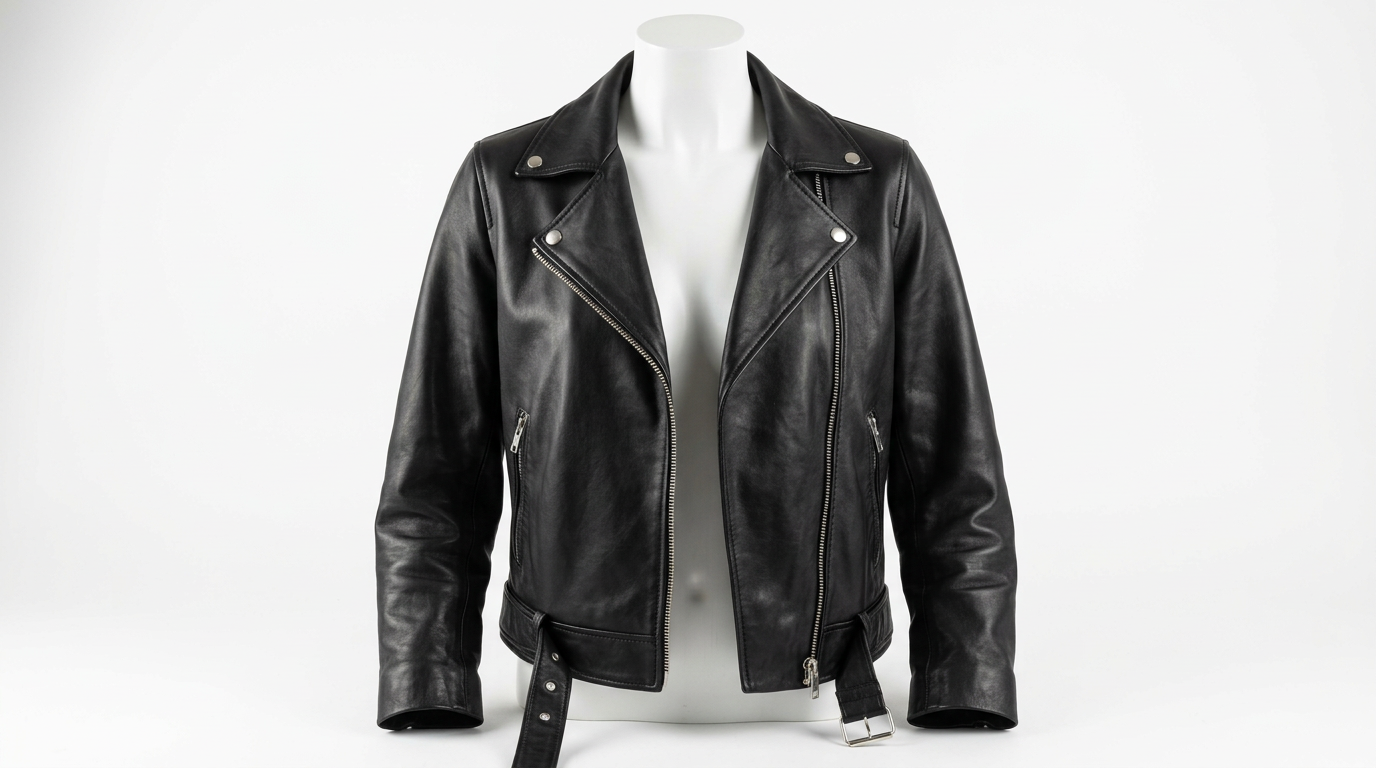
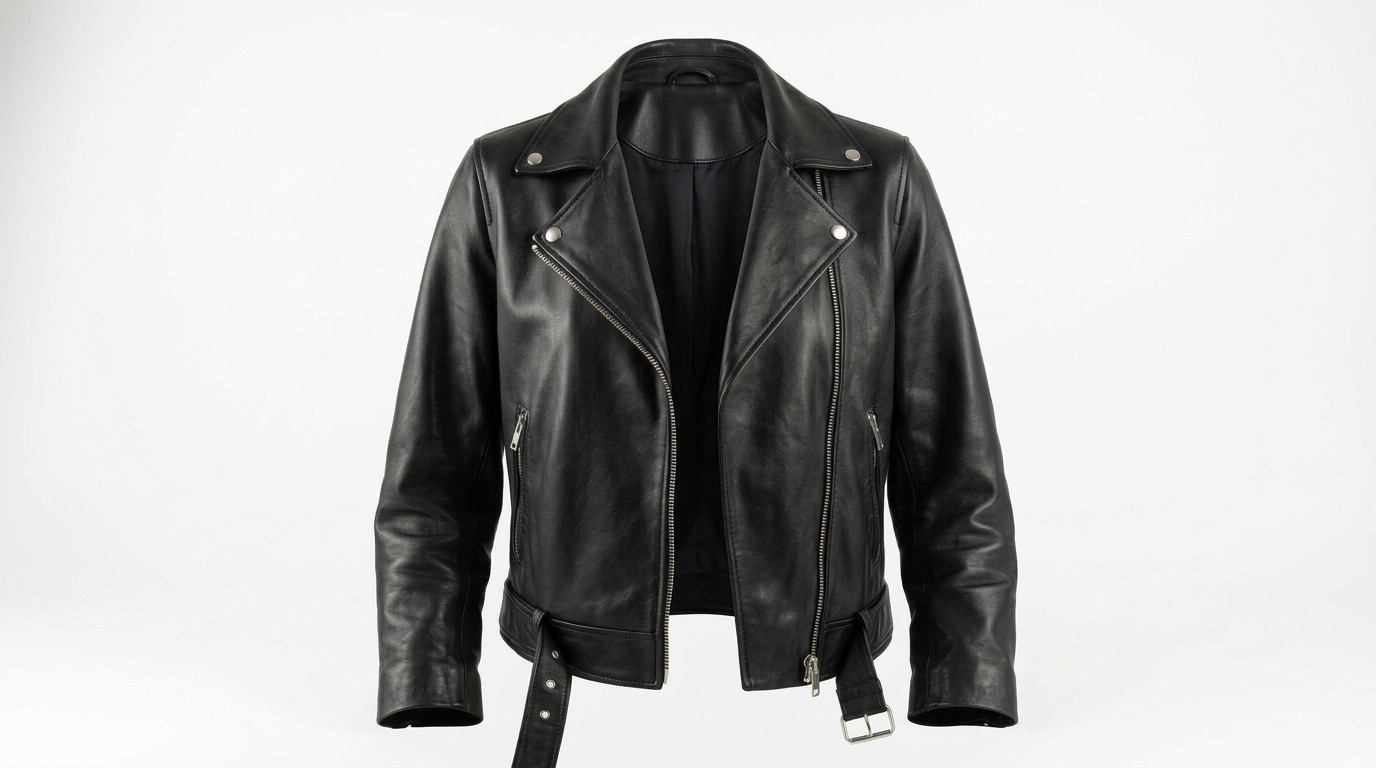
Equipment You Need
Before you start shooting, see our simple product photography setup guide — then make sure you have the right setup:
- Camera with manual controls. You need full control over aperture, shutter speed, and ISO. Any DSLR or mirrorless camera will do the job.
- Tripod. Essential for keeping your camera perfectly steady and at a consistent height between shots.
- Mannequin. Ideally one with removable limbs and torso sections, designed specifically for ghost mannequin photography. Clear or light-coloured mannequins make editing easier.
- Lighting. Two studio lights with softboxes or umbrellas, positioned either side of the product. Softboxes produce even, natural-looking light with minimal harsh shadows.
- White or light grey backdrop. A seamless paper or fabric background. White is preferred — the colour separation between garment and background makes post-production much simpler.
- Foam board (white). Used for photographing the garment's interior — collar, waistband, and label areas.
- Clips, pins, and tape. For securing garments to the mannequin and ensuring a clean, natural fit.
- Steamer. To remove wrinkles and creases before shooting.
You do not need the most expensive equipment. A solid entry-level DSLR, a pair of budget softboxes, and a collapsible mannequin will produce excellent results when paired with good technique and proper post-production.
How to Shoot for the Ghost Mannequin Effect
Step 1: Prepare the Garment
Steam the garment thoroughly to remove all wrinkles and creases. Dress the mannequin carefully, taking time to ensure the clothing sits naturally. Use clips or pins at the back to create a snug fit without distorting the garment's shape from the front.
Pay close attention to collars, cuffs, and hems — these areas are the most visible in the final image and any imperfections will be difficult to fix in post-production.
Step 2: Set Up the Lighting
Position two softbox lights at roughly 45-degree angles either side of the mannequin. The goal is even, diffused lighting with no harsh shadows.
If you are working with natural light, shoot near a large window with diffused sunlight and use a reflector on the opposite side to fill in shadows. Avoid direct sunlight — it creates hard shadows that are nearly impossible to edit out cleanly.
Step 3: Position the Camera
Mount your camera on a tripod and position it level with the garment's centre point. For shirts and jackets, this means level with the chest. For trousers or skirts, position across from the hip area.
Set a moderate aperture (f/8 to f/11) for sharp detail across the entire garment. Use the lowest ISO your lighting allows to minimise noise.
Step 4: Shoot the Front and Back
Take the mannequin shot from the front, then rotate and shoot from the back. For a full 3D ghost mannequin effect, you need both angles.
Critical step: After the mannequin shots, remove the garment and place it on a piece of white foam board. Photograph the interior areas — the inner collar, neckline, waistband, or any details you want visible in the final composite. These foam board shots are what give the ghost mannequin effect its characteristic depth.
For collared shirts, open the top button and make the inner back of the collar visible. In some cases, you may need to turn the garment partially inside out.
Step 5: Take Multiple Angles
Shoot several frames from each position. Having options makes the editing process smoother and gives you the flexibility to choose the sharpest, best-lit frame.
Ready to skip the editing queue? Send us your mannequin shots for a free sample edit and see the Pixel By Hand difference.
How to Edit the Ghost Mannequin Effect in Photoshop
This is where the real work happens. Post-production transforms your raw mannequin photos into polished, professional product images.
1. Open Your Files and Create Layers
Open your mannequin shot and your foam board shot in Photoshop. Place them as separate layers in the same document. Label each layer clearly — "Front Mannequin", "Interior Foam Board", etc. — to keep your project organised.
2. Select and Mask the Garment
Use the Pen Tool or Quick Selection Tool to carefully select the garment in the mannequin image. Create a layer mask to isolate the clothing from the mannequin and background.
Take your time with this step. The quality of your selection directly determines the quality of the final image. Pay particular attention to edges around collars, armholes, and hems.
3. Edit the Background Layer
Remove any shadows cast by the mannequin using the Clone Stamp Tool or Healing Brush Tool. If you shot on a white background, this step should be relatively straightforward due to the clean colour separation.
4. Composite the Interior Shot
Select the interior areas from your foam board image — the inner collar, neckline, or waistband — and position them behind the garment layer. Align carefully so the edges match naturally.
Use layer masks to blend the edges and create a seamless transition between the exterior garment shot and the interior details.
5. Refine the Edges
Zoom in and check every edge. Use the Refine Edge or Select and Mask tools to smooth any jagged selections. The Clone Stamp and Healing Brush are useful for fixing small imperfections where the mannequin met the garment.
6. Add Realistic Shadows
A floating garment without shadows looks unnatural. Add a subtle drop shadow beneath the garment to ground it on the background. Keep it soft and natural — the shadow should suggest depth without being heavy-handed.
7. Final Adjustments and Export
Make any final colour corrections, adjust brightness and contrast for consistency across your product range, and sharpen the image slightly for web use.
Save your working file as a PSD, then export the final image as a high-resolution JPEG or PNG for your website. Most eCommerce platforms recommend images of at least 2000px on the longest edge.
Tips for Better Ghost Mannequin Photos
These practical tips come from years of editing thousands of ghost mannequin images at Pixel By Hand:
- Consistency is everything. Use the same lighting setup, camera position, and mannequin for every product. Inconsistent product images undermine your brand.
- Invest in a proper mannequin. Mannequins with detachable arms, torso sections, and adjustable sizing make both shooting and editing dramatically easier.
- Shoot more than you think you need. Multiple angles and exposures give you options. Storage is cheap — reshoots are not.
- Style the garment, not just the mannequin. Button every button, smooth every lapel, check every seam. Small details matter enormously at high resolution.
- Match your camera height to the garment type. Chest height for tops, hip height for bottoms. Getting this wrong introduces perspective distortion that is difficult to correct.
- Use a telephoto zoom lens. A 70-200mm or similar reduces barrel distortion and gives you flexibility to shoot closer or further back without moving the tripod.
- Batch your editing. If you are processing multiple products, create Photoshop actions for repetitive steps like background cleanup and colour correction.
When to Outsource Ghost Mannequin Editing
The ghost mannequin effect is achievable in-house, but it is time-intensive. A single product can take 30-60 minutes of careful Photoshop work. If you have dozens or hundreds of SKUs, the hours add up fast.
Outsourcing makes sense when:
- Volume is high. You are processing more than 20-30 images per week.
- Turnaround matters. You need products live quickly and cannot afford editing bottlenecks.
- Quality must be consistent. Professional editors maintain the same standard across thousands of images.
- Your team's time is better spent elsewhere. Every hour spent editing is an hour not spent on marketing, sourcing, or customer service.
- You lack Photoshop expertise. Poor ghost mannequin editing — visible seams, unnatural shadows, misaligned composites — looks worse than no editing at all.
At Pixel By Hand, we have processed ghost mannequin images for over 500 eCommerce brands across fashion, sportswear, workwear, and luxury retail. Our editors specialise in this technique and can deliver consistent, high-quality results at a fraction of the cost of an in-house editing team.
Our service includes ghost mannequin editing, background removal, colour correction, and product retouching — everything you need to get your products online looking their absolute best.
Start your free trial today. Send us your images for a free sample edit — no commitment, no credit card required. See for yourself what professional ghost mannequin editing can do for your product images.
FAQ
What is the ghost mannequin effect?
The ghost mannequin effect is a post-production photography technique where a mannequin is digitally removed from a product image, leaving the garment appearing to float in a natural, three-dimensional shape. Interior details like collars and waistbands are composited in from separate photographs to create the illusion of depth.
How much does ghost mannequin editing cost?
Costs vary depending on the complexity of the garment and the type of edit required. Simple neck joints are less expensive than full 3D hollow man composites. At Pixel By Hand, we offer competitive per-image pricing that scales with volume — contact us for a quote or start with a free trial to see our quality first.
Can I do ghost mannequin editing myself?
Yes, with Adobe Photoshop and reasonable skill, you can achieve the ghost mannequin effect yourself. However, it is time-intensive (30-60 minutes per image) and requires attention to detail. For small product ranges, DIY is feasible. For larger catalogues, outsourcing is almost always more cost-effective.
What type of mannequin works best for ghost mannequin photography?
The best mannequins for this technique have detachable limbs and torso sections, allowing you to photograph interior garment details easily. Light-coloured or clear mannequins are preferable as they create better colour separation against the garment, making the editing process simpler and producing cleaner results.
Do I need a professional camera for ghost mannequin photography?
A professional camera helps, but it is not strictly necessary. Any DSLR or mirrorless camera with manual exposure controls will produce good results. What matters more is consistent lighting, a proper tripod, and careful post-production. The editing is where the magic happens — not the camera body.
Is the ghost mannequin effect suitable for all clothing types?
The technique works for virtually any garment: shirts, jackets, trousers, dresses, skirts, coats, sportswear, and even accessories like scarves and hats. The approach varies slightly depending on the garment type — a suit jacket requires more composite work than a simple t-shirt — but the core technique applies across the board.
Pixel By Hand was founded by Paul Lloyd in 2006 and is a specialist eCommerce product photo editing service with two decades of experience and 500+ clients worldwide, offering our full range of services. Start your free trial or get in touch to discuss your ghost mannequin editing needs.